
This article contains this release's feature updates, user interface changes and bug fixes.
| Release date | Environment |
| 10th of April 2026 | Stage (stage.ans.app) |
| 26th of April 2026 | Production (ans.app) Education (edu.ans.app) |
Moved flow groups to the side panel
Flow groups have been moved to the side panel and renamed to sections. This makes it possible to manage the assignment structure and navigate between exercises in one place. The side panel is now called Layout to better reflect its purpose.
The options to create a new exercise, add exercises, and create a new section are combined into a single split button. This reduces distraction by showing only one main action on the page. The default action creates a new exercise, while other options are available through the arrow dropdown. The button is placed at the top of the panel and remains sticky for easy access.
Sections are shown as titles with a folder icon for easier recognition. Descriptions are no longer indicated with an icon, as they can be viewed in the assignment preview when enabled. The number of included exercises per section appears only when it is lower than the total, making these sections easier to spot. Edit, shuffle or stop shuffling exercises, and delete actions are grouped in the section menu. Sections with shuffled exercises are marked with a badge. Sections can be reordered by dragging their titles.
Exercises appear under their sections with indentation to make the structure clear. They can be reordered using drag handles. A summary of the exercises and the total number of points is shown at the bottom of the list.
Improve scheduling an assignment
Timeslots have been redesigned and moved from the Settings to the Taking page. Assignments are now simpler to schedule for a specific day or day range, for all learners or specific learners, with only the relevant fields shown based on the selection. When creating a new timeslot, the last used time window is filled in automatically to make the process faster. Selected groups, classes, or learners now appear as separate chips, making them easier to view and remove with a single click.
Timeslots include a timer and are ordered with the soonest deadline at the top. To make monitoring simpler, learner sessions are now grouped by timeslot in digital test and hand-in assignments. Live timeslots expand sessions directly, while upcoming and ended timeslots expand after clicking the arrow. Sessions are distributed across three columns. One column is expanded by default based on the timeslot state: Not started for upcoming timeslots, Busy for live timeslots, and Submitted for ended timeslots. Clicking another column closes the current one.
Learners can start their assignments by default if the timeslot has started. All busy sessions can be submitted, and all submitted sessions can be moved back to busy from the column menu. Individual sessions include options to add a comment, generate a one-time password, and submit or unsubmit them from the session menu. Chats with individual participants can no longer be started to avoid disturbance during exams. Session locations are no longer shown.
The old Taking page and Progress tab will be removed on 1 September 2026. Until then, the learners overview from the old page remains available through the link next to the New timeslot button.
Updates:
Add additional time to individual sessions in the new taking page
The new taking page now lets you add additional time directly to an individual session. Set the number of extra minutes for that session, and the value is saved on the session result.
To make this visible in the session overview, sessions with granted additional time now show a compact metadata label such as +5 min extra. This label appears in both the session list and the session dialog, so you can quickly see which sessions have extra time.
The +X min extra label is shown only when additional time is greater than 0. The existing eligibility label (Right to extra time) is still shown separately and can appear together with the granted amount.
Live timer and session details on the timeslot page
Sessions that are in progress now show a live countdown timer instead of a static "Busy" label. The timer counts down from the session's start time to its deadline.
When viewing a session's details, the metadata line now shows the start and end time (displayed as a date range for submitted sessions, or start time to "now" for sessions in progress) and the locations where the session was taken. Clicking a session name opens its result in a dialog.
Timeslot columns open by default based on relevance
Timeslot columns now open automatically based on the timeslot's status. The not started column is always open. The submitted column opens unless the timeslot is scheduled for the future. The busy column remains open during live sessions.
Previously, opening one column would close the others. Columns now stay open independently, so you can view multiple columns at once.
A close button in the top-right corner of each column allows you to collapse it manually. The close button only appears on columns that are less relevant for the current timeslot status: the busy column when the timeslot is not live, and the submitted column when the timeslot is in the future.
Added support for sections in written assignments
It is now possible to use sections, previously known as flow groups, in written assignments. This allows instructors to generate unique forms for students.
When generating for specific learners, the system will also take student tags and previously taken exercises into account. This ensures that the exercises are targeted at the student's level and students do not receive exercises they already answered before, if alternative exercises are available.
Improved print forms creation for written assignments
Creating print forms for written assignments has been moved to the Taking page. Print forms are now created together with a timeslot, ensuring the assignment appears in the schedule. Forms can be created for any learner or specific learners. Selecting specific learners creates personalised forms for them.
Saved items include a progress indicator and a button to download forms. The button becomes active after all forms are created. To prevent changes to the printed forms, they cannot be edited and can only be deleted from the menu.
Assignments without forms use only the new print forms experience. Existing written assignments with generated forms support both the old Print button and the new experience until 1 September 2026, after which the old button will be removed.
Deprecation of section shuffling and pinning
When specific sections are selected, they appear as chips in the searchable field. Removing a chip pins that section in place and excludes its exercises from shuffling. New sections created with this option are automatically included in shuffling.
Existing assignments with shuffled and pinned sections remain unchanged.
The options Shuffle flow groups and Pin flow groups are now no longer available for newly created assignments. The options are being phased out, and will be removed from all assignments on September 1, 2026. If you turn them off earlier, they cannot be enabled again.
Update: This option will no longer be deprecated. Sections shuffling has been updated and moved to the layout settings. There are now three options: no shuffling, shuffle all sections and shuffle specific sections. By default, sections are not shuffled.
Exercises can now be sorted by custom fields on the question bank exercise overview
It's now possible to sort exercises by custom fields in the question bank overview.
Sorting works the same as with other sortable columns: click the arrow next to the column title to sort in ascending or descending order. Custom field options are sorted based on their defined order (from first to last, or last to first).
Exercises without a value for that custom field are also included in the list and are placed at the end.
Put selected exercises in the trash from the question bank toolbar
The remove action in the question bank toolbar is now a visible “Put in the trash” button instead of a delete icon.
Putting exercises in the trash removes them from assignments but does not permanently delete them. They can still be restored later.
The confirmation message now clearly explains this before the action is applied.
"Copy" replaced with "Add to" and "Duplicate" in question banks
The single "Copy" icon button in the question bank exercises toolbar has been replaced with two separate actions: "Add to" and "Duplicate".
"Add to" opens a dialog where you select a destination. Destinations are grouped into two categories: assignments within the current question bank, and course assignments. After selecting a destination, a section can be chosen if the destination uses sections. The selected exercises are then added to that destination.
"Duplicate" opens a dialog where you select a target question bank. The current question bank is preselected. Submitting duplicates the selected exercises into the chosen question bank as new copies.
Previously, these two operations were combined behind a single "Copy" icon button. Splitting them into labeled text buttons makes the intent of each action clearer.
Changed the dialog for adding exercises to a question bank assignment
The dialog for adding exercises to question bank assignments has been updated to the new styling. Typing an exercise name or ID shows the 20 most relevant results in a dropdown list. If more matches exist, their total number is shown at the bottom. Exercises are sorted with the most recently edited first. Selected exercises appear as chips, making them easy to review and remove with a single click.
For assignments with multiple sections, exercises can be added directly to a chosen section using the selector. The last section is selected by default. Exercises appear in the order they were selected.
Exercises show which assignments they were previously used in
Exercises saved in a question bank now show where they were previously used in the Content and Grading scheme tabs, helping to avoid accidental reuse and understand their history.
The list appears below the card in a tab labelled “Previously used in X assignments”.
Each entry shows the course name, a link to the assignment, and the assignment’s end date. Clicking the assignment name opens that assignment. The list is sorted by end date, with the most recent first.
Only assignments that you can access are shown, as noted at the bottom of the list.
For exercises added within an assignment, the list is limited to assignments that ended before the current assignment. For exercises in the question bank, the list includes all assignments where the exercise was previously used.
Changed the dialog for adding exercises to a course assignment
The dialog for adding exercises to course assignments has been updated. It now supports adding exercises from course assignments and question banks in one place. When more context is needed to find the right exercises, question banks remain useful for browsing.
Typing an exercise name or ID shows the 20 most relevant results in a dropdown list. Exercises are sorted with the most recently created first. Selected exercises appear as chips, making them easy to review and remove with a single click.
For assignments with multiple sections, exercises can be added directly to a chosen section using the selector. The last section is selected by default. Exercises appear in the order they were selected.
Removed "Unlink from question bank" option
As announced previously, the "Unlink from question bank" option has been removed.
Previously, exercises linked to a question bank had an "Unlink from question bank" option in the dropdown menu. This option has been removed.
To use an exercise independently from the question bank, copy the exercise and delete the linked one. This achieves the same result using actions that already exist in the platform.
Maximum words are no longer enforced
Maximum words are no longer enforced while answering open questions in digital tests with a word limit. Responses save as you type, including when typing blind or pasting. Students can write without interruption and edit down if needed.
The word counter now shows how many words are typed and the expected maximum. It displays “X / Y words” when a maximum is set, or “X words” when there isn’t. The counter is always visible under the answer, so students see the expected limit before they start writing and remain aware of it while writing and after finishing their answer.
The word limit is now a soft limit. Students can go over without being blocked, and still submit. Teachers decide how to factor this into grading.
Update:
Previously, the red styling appeared only in the digital test interface visible to students. Reviewers viewing the response during grading saw the word count in the default colour, making it less obvious that the limit had been exceeded. The red text now also applies to the grading view and the print view.
Proctorio integration updated to API v2
The Proctorio integration has been upgraded from API v1 to API v2. This update ensures compatibility with Proctorio’s latest API as they begin phasing out API v1.
No new functionality has been added. Existing proctoring settings and behaviour remain unchanged.
Schoolyear is now generally available
Previously, a school administrator had to enable Schoolyear as a beta feature before it could be configured. The integration is now available to all institutions directly from the integrations page.
Simplify peer review period to single start/end datetime
Peer review now uses one clear start and end time.
Before, the review period was set with multiple time slots. These could differ per group or class, which made the setup flexible but often confusing and error-prone.
Now, the review period is defined by a single start and end datetime in the review settings. Everyone follows the same schedule.
Existing review time slots are combined into one period, from the earliest start to the latest end.
Marks now show a pass/fail status label
When an assignment has a pass mark configured, the mark is now displayed as a coloured status label. A mark that meets or exceeds the passing threshold appears with a green label. A mark below the threshold appears with a red label.
The label is shown wherever a mark appears: in the results overview for instructors, on the individual result profile, and in a student's own results list.
Previously, the mark was displayed as plain text with no indication of whether it was passing or failing.
Results are now shown in monthly sections on the 'My results' page
For students, the "My results" page now opens with the most recent month containing submissions. Results are grouped by submission date.
Each date appears as a heading, with submissions listed underneath.
At the bottom of the page, “Show earlier results” loads the previous month. Results can be loaded month by month.
When no older results are available, the page shows “No earlier results”.
Permanent account deletion
School administrators can now permanently delete accounts from the "Removed users" overview. Open the three-dot menu for an account and choose "Restore" or "Delete". Deleting an account is irreversible, therefore additional confirmation is required by typing "Delete".
Previously, removed students appeared as “Student, Removed,” which could make it difficult to identify the correct account. To reduce confusion and help prevent accidental deletions, removed users are now displayed with their actual names in the overview. This also eliminates the need re-set all the account information manually if a user is restored.
From 1 September 2026, accounts that remain in "Removed users" for more than 180 days are permanently deleted on a daily basis.
Logs now include changes to criteria groups and answer alternatives
The course assignment and question bank exercise logs now include changes to criteria groups and answer alternatives.
Logs now show saved data on creation
Logs now show what data a record is created with, including points or position.
Removed the Rijnja integration
Due to limited usage, the Rijnja integration has been removed from the school integrations.
Improved clarity of multiple choice instructions in paper-based assignments
The multiple choice instructions are updated with a step-by-step example that shows how to select an answer and how to correct it on the first, second, or third attempt.
Custom cover file upload for exams marked as deprecated
The cover file upload field on written assignment cover pages now shows a "Deprecated" badge. The field remains available for assignments that already have a custom cover file. For assignments without a custom cover, the upload option is available only until September 1, 2026.
Previously, all assignments showed a file upload field on the cover page for uploading a custom PDF cover. This option is being phased out. Assignments that already use a custom cover file can still view and remove it. More information on this change can be found here.
Include webhook event identifier in webhook body
The JSON payload of a webhook event now also includes an identifier (uuid). The identifier can be used to determine if an event is already processed when listing webhook events through the API.
Removed self-service page for beta features
As announced previously, the beta features page in the school settings has been removed.
School administrators who want to enable a beta feature can contact support. The team will enable it for the institution. Beta features that are currently enabled or disabled for the institution remain unchanged.
Feature previews are unchanged. The new grading experience and the new home page experience remain available, allowing users to decide for themselves whether to use them.
Only the page that allowed school administrators to toggle beta features for the institution has been removed.
Notifications now show across all your accounts
Previously, the notifications only showed notifications for the account you were currently logged into. If you had accounts at multiple schools, you had to switch between them to check each one.
The notification bell now shows notifications from all your accounts in one list. This includes notifications from non-employee accounts such as student or guest accounts, which previously had no access to notifications. The unread indicator appears when any of your accounts has unread notifications. Clicking a notification from another account automatically switches to that account before opening it.
Jump to assignments, courses and more from all your accounts
The left search bar in the header has been replaced with a magnifying glass icon on the right. Clicking it opens a dialog where you can search across assignments, courses, question banks, and users in one place.
When the dialog opens, it shows your recently viewed items. Start typing to search, results are grouped by type and update as you type. Selecting a result navigates directly to it.
Results include items from all your accounts. Previously, search only covered the account you were currently logged into, requiring you to switch accounts to find items elsewhere.
The dialog can also be opened with Ctrl + J for users who have keyboard shortcuts enabled.
Renamed edit layout to test configuration
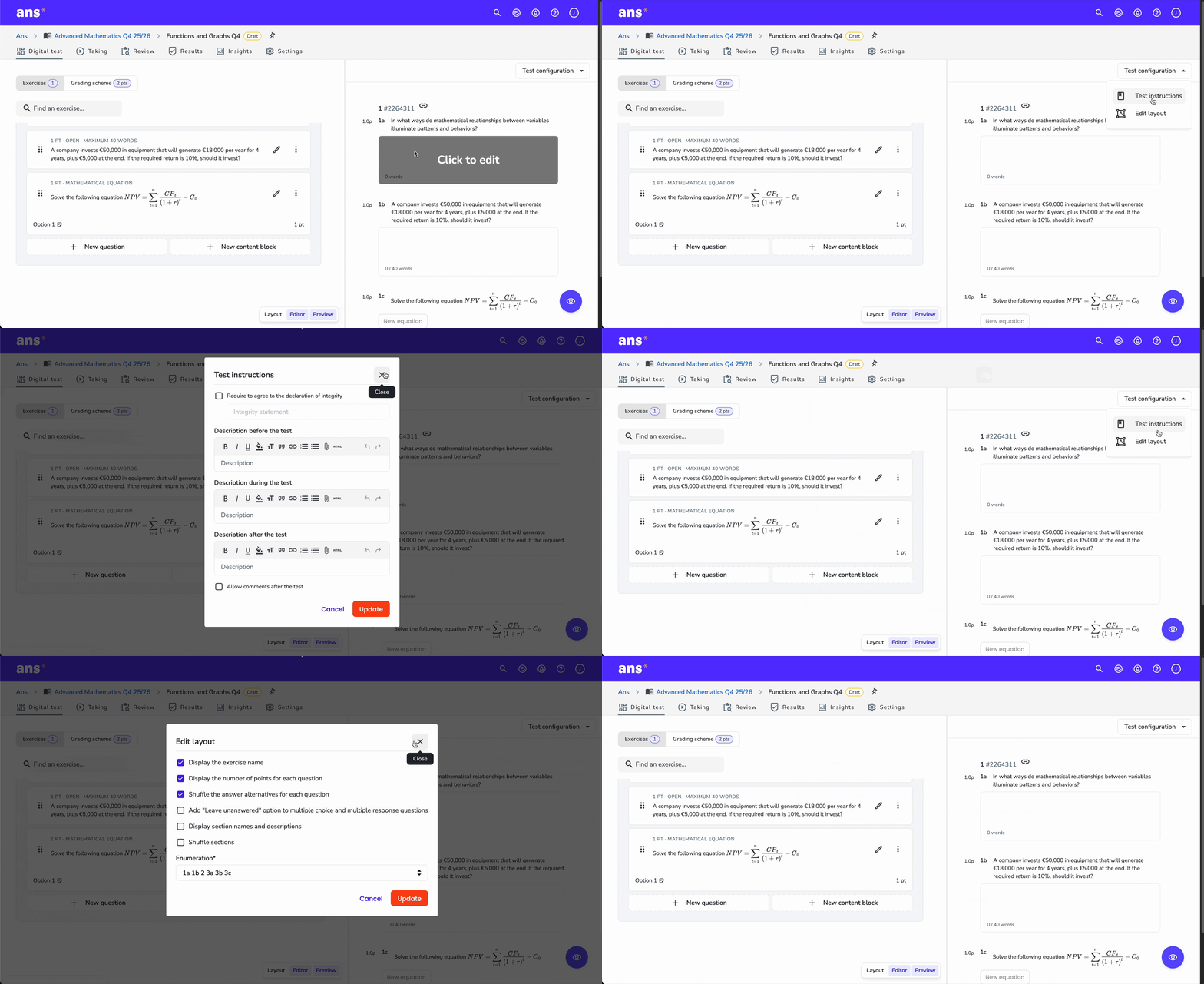
We have renamed the Edit layout option to Test configuration and made a few visual updates to improve its visibility.
Added support for configuring course access of school integrations to the API
It is now possible to configure the course access of the Canon, Readspeaker, Schoolyear, Proctorio and ProctorExam school integrations via the BETA version of the API.
Expanded API responses for users, courses and question banks
The BETA version of the API now includes more related information in user, courses and question bank requests. This reduces the number of follow-up requests and ensures that the BETA version contains the same information as V2 of our API.
What Changed
- User responses now include richer details for linked courses and question banks.
- Course membership responses now include related user or course details, depending on the endpoint.
- Question bank membership responses now include related user details.
Bug fixes
-
Fixed an issue where the multiple choice alternatives were cut off
Previously, long content in answer alternatives for multiple choice questions caused overlap.Answer content now shows up to two lines, preventing overlap, and spacing between alternatives has been increased to improve readability.
Removed .AVI files from supported video formats in content blocks
Due to limited browser support for .AVI files, the video can no longer be selected when updating a video to a video content block.Preserve auto-generated section names when editing
Auto-generated sections now keep their generated name in the name field during editing, so users no longer need to enter a new name manually when updating the section.Fixed an issue where LaTeX did not display correctly in tooltips
Previously, LaTeX appeared as plain text. Now, mathematical expressions display correctly, making them easier to read.Fixed an issue where long question bank exercise titles prevented navigation to the next exercise
Previously, when a question bank exercise had a very long title, the title would overlap the navigation buttons in the top-right corner. The title is now truncated to ensure that the navigation buttons always remain visible.Fixed an issue where it was not possible to remove labels from assignments
Previously, when a label was added to a course assignment, there was no option to remove it. Labels can now be removed from an assignment by clicking the active label.Code editor preserves unsaved script changes
The code editor dialog now stores unsaved changes locally. If you close the dialog without saving, your script edits are preserved and restored automatically when you reopen the editor.Clicking "Discard changes" discards the draft. Closing the dialog with the close button keeps the draft intact. Clicking "Update" saves your draft and applies it to the exercise, making it the latest version.
-
Fixed an issue where LaTeX equations did not enlarge when the "Use large font" option was enabled in a digital test
Previously, when the "Use large font" option was enabled in a digital test, LaTeX equations were not enlarged. The font size for equations is now also increased from 16 to 18 px.
-
Fixed an issue where table navigation in the text editor could get stuck or jump unexpectedly
Previously, keyboard navigation behaviour inside tables in the text editor was inconsistent. Now, arrow keys move between cells and rows more reliably, including when a cell contains hidden formatting characters. When moving past the first or last table cell, the cursor now moves to content outside the table as expected. If no paragraph exists before or after the table, an empty paragraph is created automatically to allow continued typing without manually adding a new line.
-
Fixed an issue where appraisal forms only showed a grading scheme link when any question was missing criteria
Previously, if at least one question in an appraisal form was missing an evaluation criteria, the entire form would only display a link to the grading scheme page. Now, questions with a valid grading scheme are shown as normal, and only questions missing criteria display a “missing grading scheme” message with a link to the relevant exercise.
-
Fixed an issue where students were navigated to the 'Taking' page when the timeslot had already ended
Previously, when a learner clicked on an assignment that had already ended, they were redirected to the taking page instead of the result page. Now, learners are taken directly to the result page.
-
Fixed an issue where external users were blocked by SSO enforcement
Previously, when a school had SSO enforcement enabled, external users with an email address matching that school were also required to sign in through SSO. External users are now excluded from SSO enforcement and can sign in with their own credentials.
-
Fixed an issue where icon-only controls lacked screen reader labels
Previously, some icon-only controls and status indicators did not provide accessible text, which made them unclear for people using screen readers. These controls now include appropriatearia-labeltext (with translations) so their purpose and status are announced correctly.
-
Added a descriptive aria label to custom fields dropdowns
Previously the dropdown for selecting a custom field value did not have any screenreader accessible content, to improve clarity for users relying on assistive technologies, it now has the name of the custom field along with the selected value.
-
Fixed an issue where links within navigation headers were incorrectly interpreted by assistive technologies
Previously, assistive technologies like VoiceOver identified the links within the navigation headers of assignments, courses, question banks, and schools as form controls. They are now correctly identified as links.
-
Updated notifications so they are announced to assistive technologies
Previously, alerts and notifications were not announced to users relying on assistive technologies, such as screen readers. The ARIA (Accessible Rich Internet Applications) role for these events has been updated so that users are now notified when they appear on the page.
-
Fixed an issue where it was not possible to leave a code block using the arrow keys
Previously, it was not possible to leave a code block in the rich text editor using the arrow keys. Now it is.
| Version | Date | Information |
| v1.0 | 10-04-2026 | Initial version |
| v1.1 | 22-04-2026 | We have made updates to the following features and deprecations: - Improve scheduling an assignment - Maximum words are no longer enforced - Deprecation of section shuffling and pinning |
| v1.2 | 29-04-2026 | Added additional information to the change Permanent account deletion. |
Comments
1 comment
We have made updates to the following features and deprecations:
- Improve scheduling an assignment
- Maximum words are no longer enforced
- Deprecation of section shuffling and pinning
Article is closed for comments.